
About Voice Control
Re-setting
On Tuesday, December 2, 2025, from 10:00 AM to 1:00 PM(JST), we performed server maintenance on Amazon Alexa voice services. As a result of the maintenance, users who were using PanasonicTV” skill on Alexa" are required to reconfigure their devices with initial setup procedures for Amazon Alexa.
In the case of Android
(1). Launch the "Home" app.
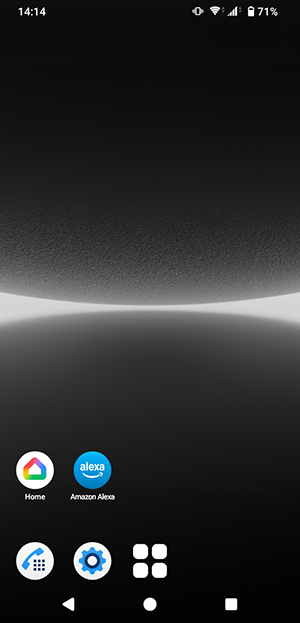
(2). Select "  "
"
"
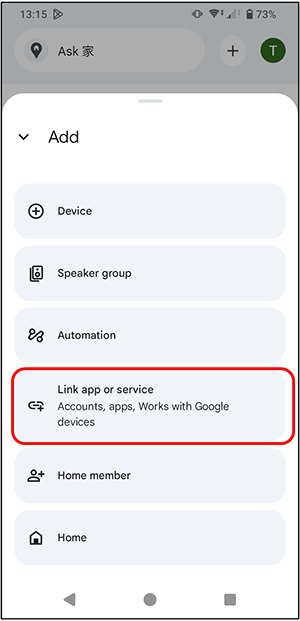
(3). Select "Link to the app or service"
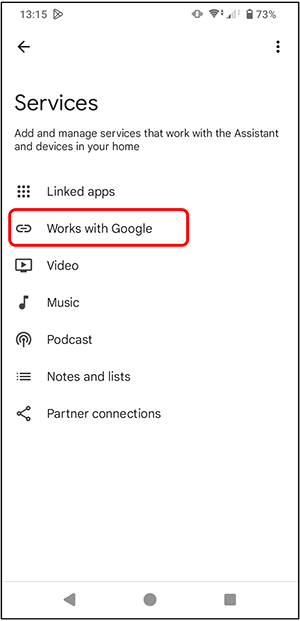
(4). Select "Works with Google."
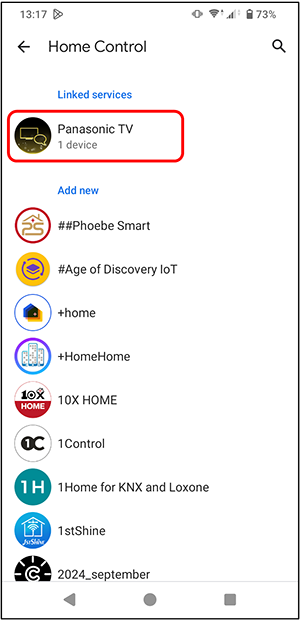
(5). Select "Panasonic TV."
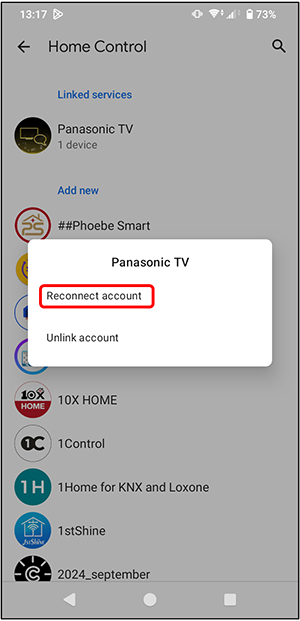
(6). Select "Reconnect account"
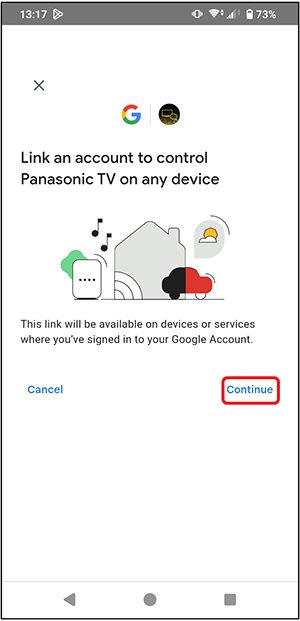
(7). Select "Continue"
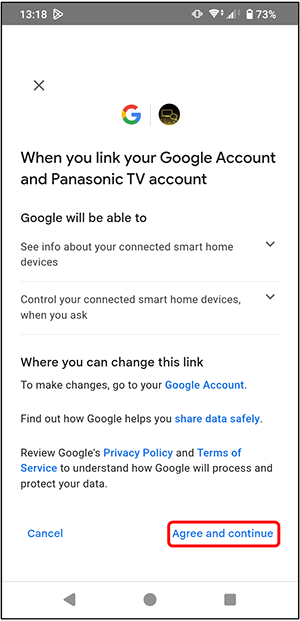
(8). Select "Agree and continue"
(9). When the "Welcome to Viera" screen appears, scroll down
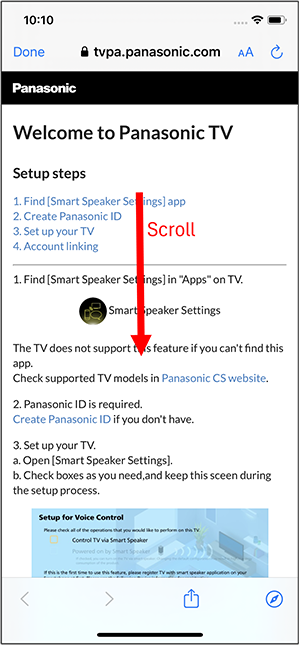
(10). Select "Go to Account Link Settings"

(11). The "Sign in with your Panasonic ID" screen will be displayed
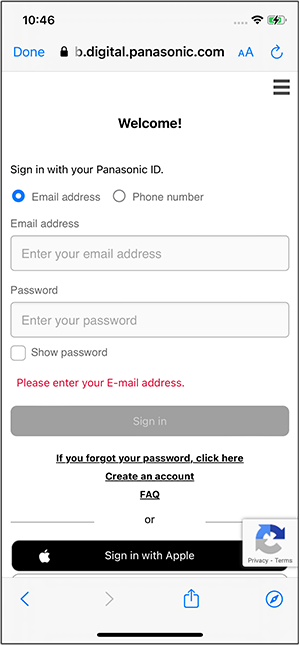
(12). Enter your "Email Address (Login ID)" and "Password," then log in

(13). Select "Allow"

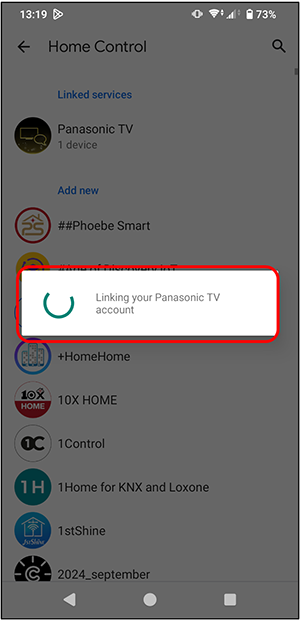
(14). Waiting screen: "Linking your Panasonic TV account"
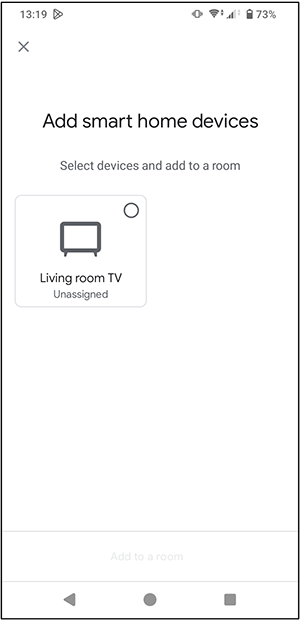
(15). The "Add Smart home devices" screen will appear
In the case of iOS
(1). Launch the "Google Home" app.
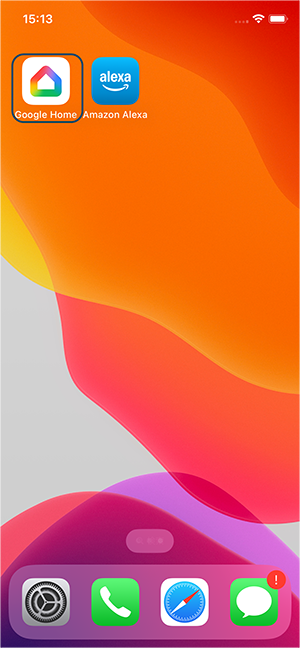
(2). Select " "
"
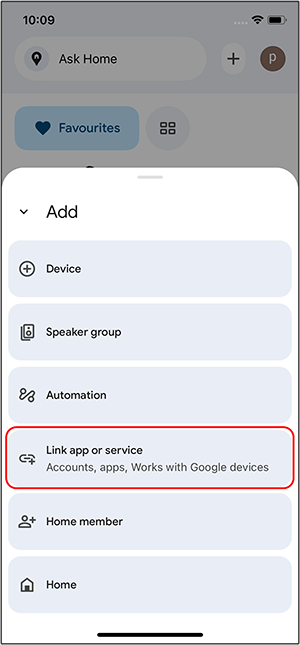
(3). Select "Link the app or service"
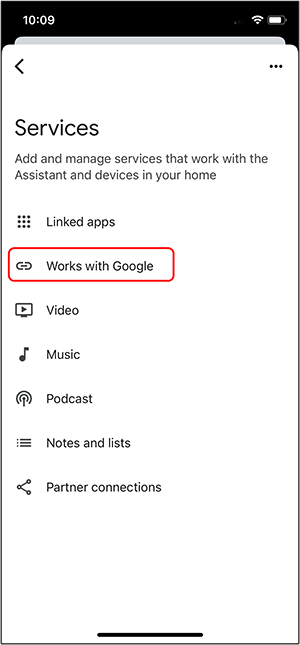
(4). Select "Works with Google"
(5). Select "Panasonic TV"

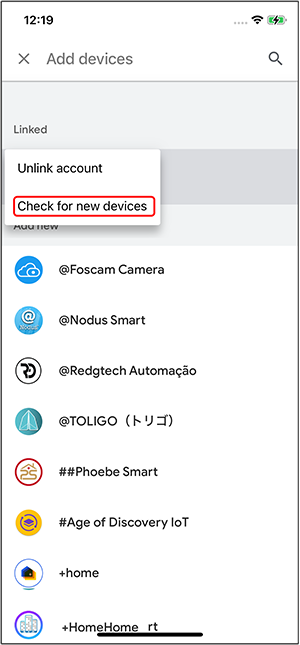
(6). Select "Check for new devices"
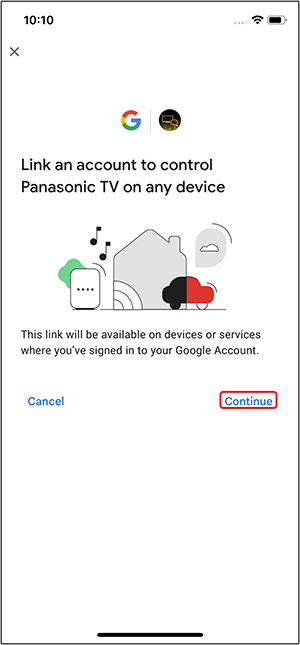
(7). Select "Continue"
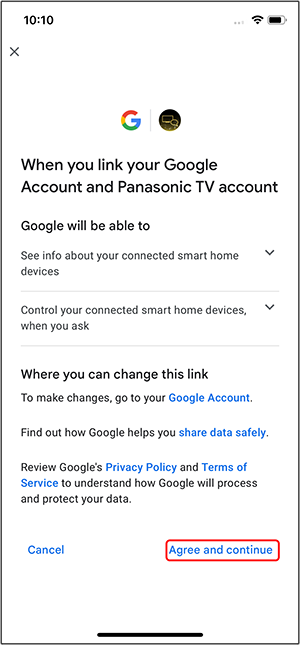
(8). Select "Agree and continue"
(9). Select "Go to Account Link Settings"
(10). The "Sign in with your Panasonic ID" screen will be displayed
(11). Enter your "Email Address (Login ID)" and "Password," then log in
(12). Select "Allow"
(13). When the "Panasonic TV is linked" screen appears, scroll down
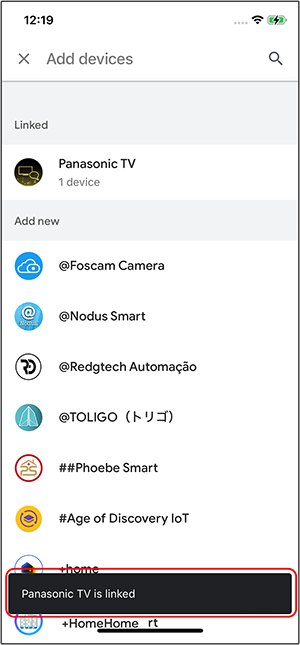
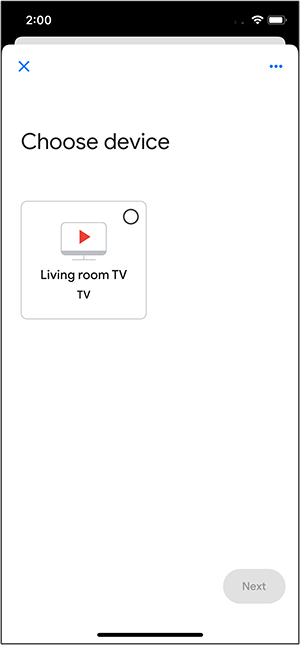
(14). The "Choose Device" screen will then appear