
 Digital AV Support > Digital Camera > FAQ > How to import captured images to iPhone/iPad
Text begins from here.
How to import captured images to iPhone/iPad
1. Connect the camera and import images
Connect the Lightning-USB Camera Adapter and a USB(A-C) cable (for Lightning port) or a USB(C-C) cable (for USB Type-C port) to the camera and import images to your iPhone/iPad.
① Turn on the camera.
② Connect the camera to the iPhone/iPad using the Lightning-USB Camera Adapter and a USB (A-C) cable or a USB (C-C) cable.

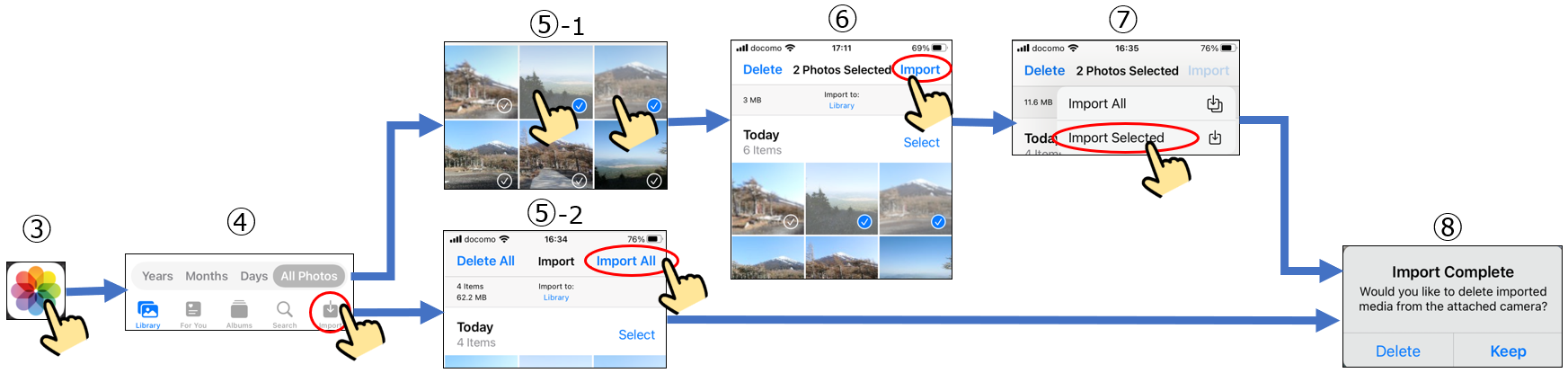
③ Open the "Photos" app on the iPhone/iPad.
④ Tap the "Import icon  " when it appears. (If the icon does not appear, unplug the iPhone/iPad connector and reconnect it.)
" when it appears. (If the icon does not appear, unplug the iPhone/iPad connector and reconnect it.)⑤-1 To select images to import, tap the image you want to import to select it.
⑤-2 To import all images, tap "Import All" → Go to procedure ⑧
⑥ Tap "Import"
⑦ Tap "Import Selected"
⑧ After importing images to the iPhone/iPad, choose whether to keep or delete the images in the camera.
2. Connect SD card reader and import images
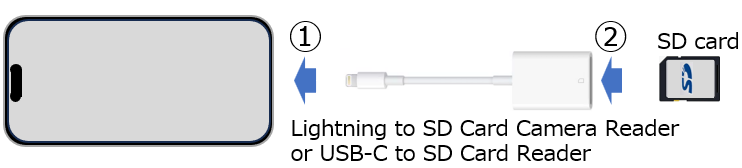
Use the Lightning-SD Card Camera Reader (for Lightning port) or the USB-C-SD Card Reader (for USB Type-C port) to import images to your iPhone/iPad.
① Connect the card reader to the iPhone/iPad.
② Insert the SD card into the card reader.
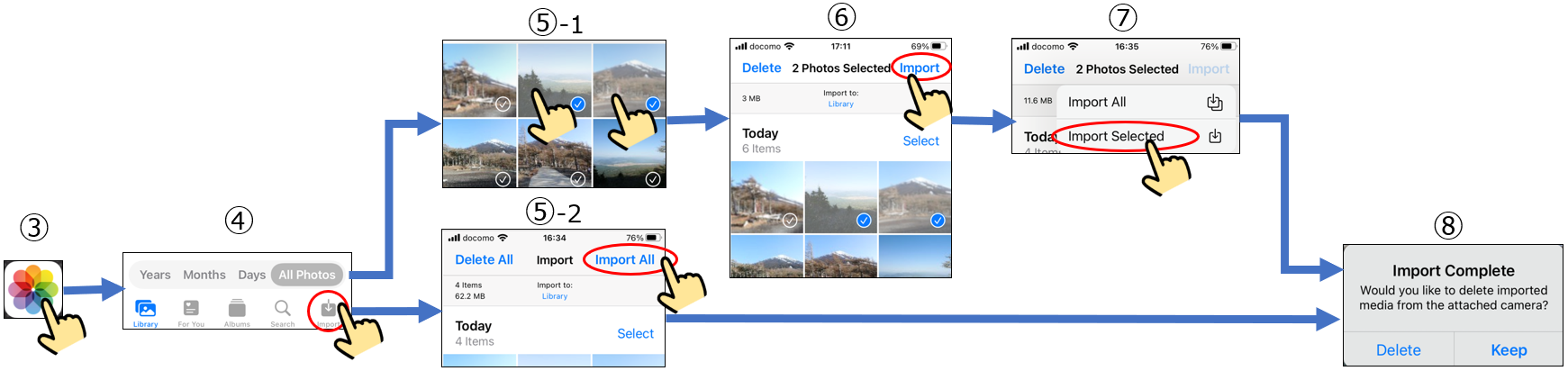
③ Open the "Photos" app on the iPhone/iPad.
④ Tap the "Import icon " when it appears. (If the icon does not appear, unplug the card reader and reconnect it.)
" when it appears. (If the icon does not appear, unplug the card reader and reconnect it.)⑤-1 To select images to import, tap the image you want to import to select it.
⑤-2 To import all images, tap "Import All". → Go to procedure ⑧
⑥ Tap "Import"
⑦ Tap "Import Selected"
⑧ After importing images to the iPhone/iPad, choose whether to keep or delete the images in the camera.