
 Digital AV Support > Digital Camera > FAQ > How to import captured images to iPhone/iPad
Text begins from here.
How to import captured images to Android Smartphone/Tablet (USB Type-C)
Connect the camera and import images
Connect to the camera with a USB (C-C) cable and import images to your Android phone/tablet.
① Turn on the camera.
② Connect the camera to the Android phone/tablet using a USB (C-C) cable.

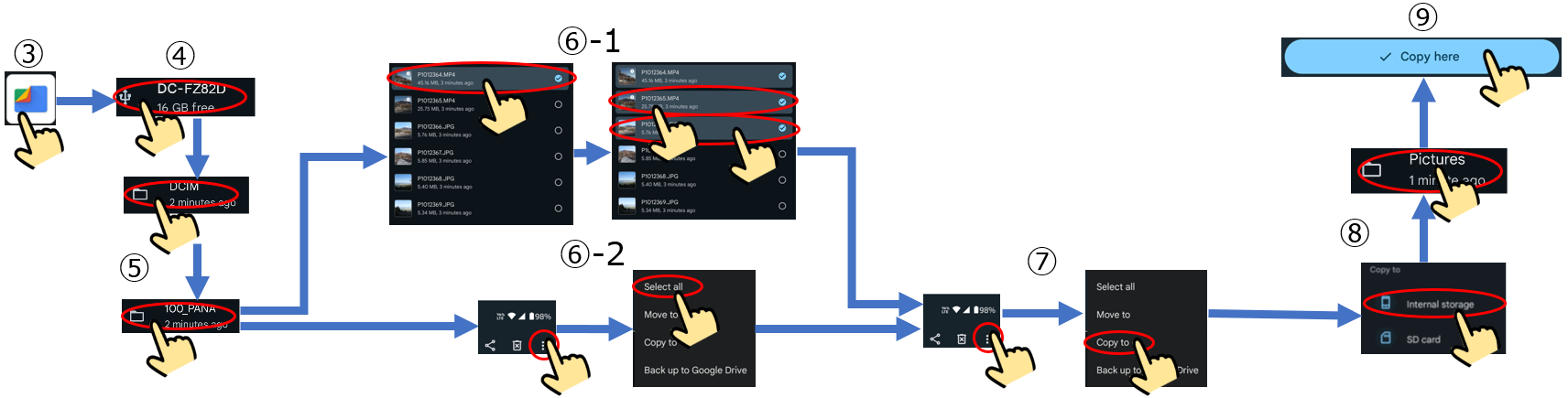
③ Open the "Files" app on the Android phone/tablet.
④ Tap the USB icon  after the message "USB is now available." appears. (If the icon does not appear, unplug the connector and reconnect it.)
after the message "USB is now available." appears. (If the icon does not appear, unplug the connector and reconnect it.)⑤ After tapping the "DCIM" folder, tap the folder containing photos such as "100_PANA".
⑥-1 Press and hold the image you want to import and a selection icon  will appear. Tap all the other images you want to import.
will appear. Tap all the other images you want to import.⑥-2 If you want to import all images in the folder, tap  in the upper right corner and select "Select all".
in the upper right corner and select "Select all".⑦ Tap in the upper right corner and select "Copy to". (To delete images in the camera after import, select "Move to".)
in the upper right corner and select "Copy to". (To delete images in the camera after import, select "Move to".)⑧ After selecting "Internal storage" as the copy destination, select "Pictures".
⑨ Tap "Copy Here" to start importing.