
 Digital AV Support > TV > Download > Download Information of TV for Europe
Download Information of TV for Europe
Firmware Update Information
| Applicable Models |
Europe
OLED models
LCD models
|
|||||||||||||||||||||||||||||||||||||||||||||||||||||||||||||||||
| Firmware Version | Version RS8180/3745 | |||||||||||||||||||||||||||||||||||||||||||||||||||||||||||||||||
| Release Date | Oct. 2, 2026 |
| Date/Version | Description |
| Oct. 2, 2026 Version RS8180/3745 |
|
| Mar. 24, 2026 Version RS8166/3485 |
|
| Dec. 16, 2025 Version RS8157/3604 |
|
| Oct. 7, 2025 Version RS8151/3646 |
|
| Jun. 11, 2025 Version RS8141/3009 |
|
Firmware Update Procedures via the Internet (Network connection is required, but Amazon account is not required.)
Perform steps 1 through 2 listed below.
Step 1: Check the current version of Software used by your TV.
Step 2: Download an updated version of the Software and install it via the Internet.
Note : Firmware update is supported via the internet only.
- To update, an Internet connection is required, but Amazon account is not required.
Step 1. Check the current version of firmware used by your TV.
Panasonic recommends that you update the Software in your TV
if the Software version indicated is older than the version being offered.
Please check the current version of Software in following procedure.
(Your TV screen might have difference from the following examples, but the steps are the same.)
- Steps
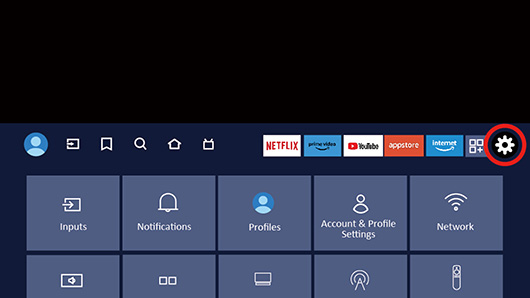
- Press the Home button on your remote control and select “Settings” (on the screen).
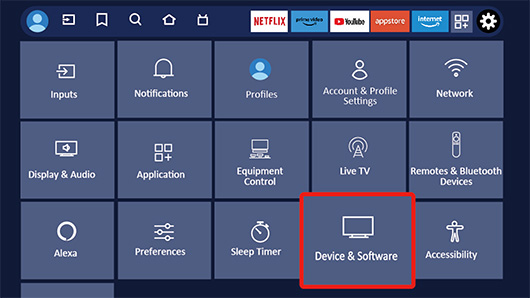
- Select "Device and Software" and press the "OK" button.
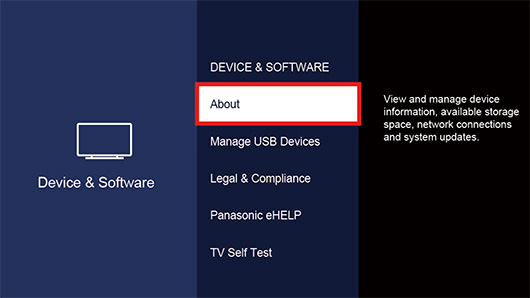
- Select “About" and press the "OK" button.
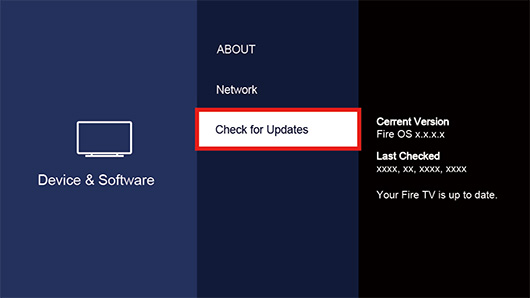
- Select "Check for updates" and press the "OK" button.
- As shown in the image on the following, you will see that
"Your Fire TV is up to date."
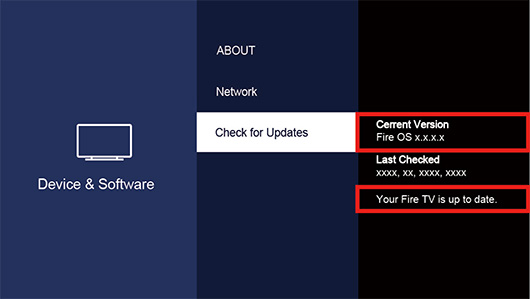
(Reference)
You can also check the software for "Your TV" by following the steps below.
・Checking Method(A)
- Press the Home button on the remote control and select “Settings” (on the screen).
- Select "Device and Software" and check the current version.
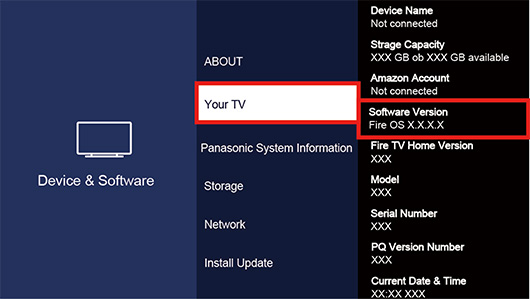
- Press the Home button on the remote control and “Settings”(on the screen).
- Select "Device and Software."
- Select "About," then select "Panasonic System Information."
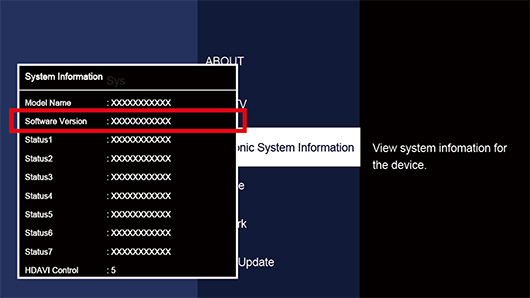
Step 2: Download an updated version of the Software and install it via the internet.
Note: Your TV may reboot during the update, which takes approximately a few minutes to complete.
If the software is downloaded while connected to the Internet,
manually install and update using the following steps.
- The update to the new version of the software may be completed while the power is turned off.
- Press the Home button on your remote control and “Settings” (on the screen).
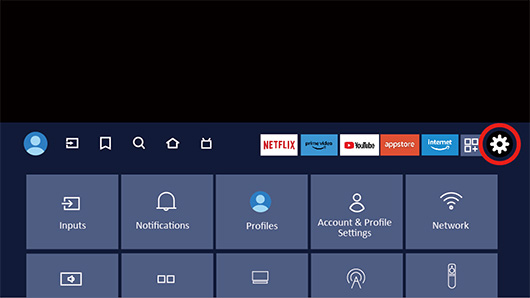
- Select "Device and Software" and press the "OK" button.
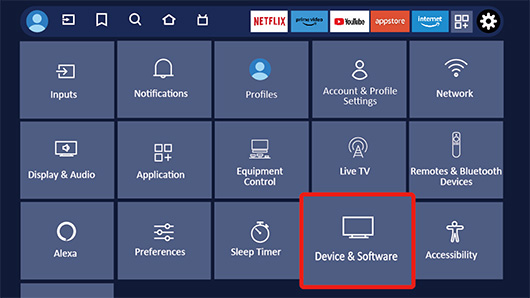
- Select “About" and press the "OK" button.
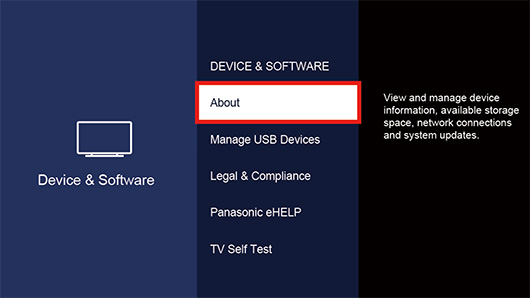
- Download the software to “Your TV."
① Select "Check for updates" and press the "OK" button.
* "Downloading" will be displayed while the software is being downloaded.② Once the download is complete, you can select "Install".
* As the download uses an Internet connection, download times will depend on your environment.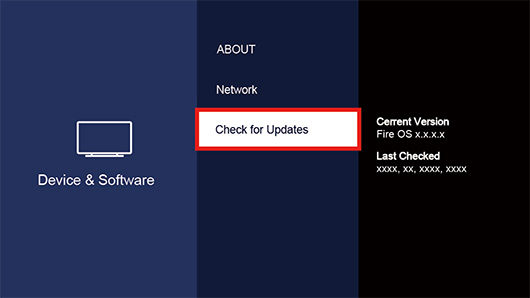
- Install the software on “Your TV."
① Select "Install updates" and press the "OK" button.
* "Installing" will be displayed while the software is being installed.* Installation takes about 10 minutes.② After the installation is complete, follow the instructions on the screen.
* A restart may be required.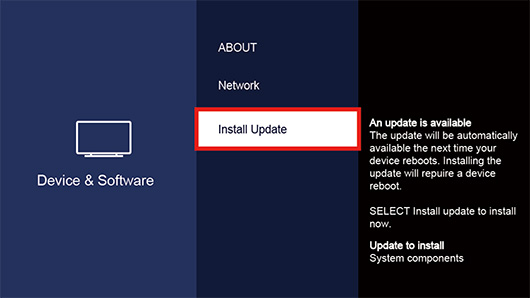
- Check the software update status.
① Press the Home button on your remote control and “Settings” (on the screen).
② Select "Device and Software" and press the "OK" button.
③ Select "About" and press the "OK" button.
④ Select "Check for updates" and press the "OK" button.
As shown in the image on the following, the software update process is complete when the message "Your Fire TV is up to date.“ is displayed.
(Note)
An additional software update may be required.
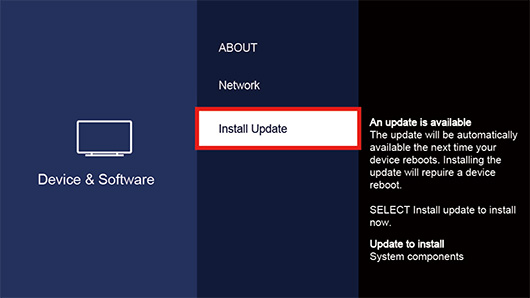
If the message "An update is available" is displayed as shown in the image on the following, please repeat steps (5) and (6) above.