

Edit
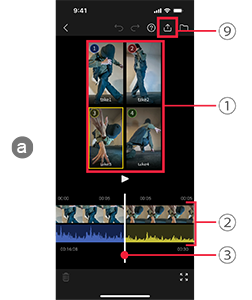
aEditing screen
1Multiview
You can review clips from each camera angle at the same time.
To replace the clip displayed here, choose other clips in the video library c.
2Timeline
Initially, the timeline only shows angle 1.
To replace the next clip for display (shown to the right of the playback head), tap a different clip in the multi view display 1.
3 Playhead
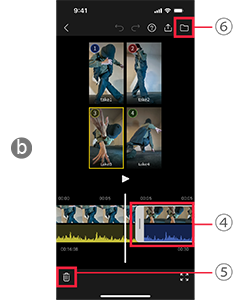
bEditing screen (with clip selected)
4Trim clip
Tap a clip on the timeline to select it.
To change the portion to use, drag the tabs at either end of the frame left or right.
Change angle
With a clip selected, you can switch to a different angle by tapping an angle shown in the multiview a-1.
5Delete clip
To delete a clip, tap  while it is selected.
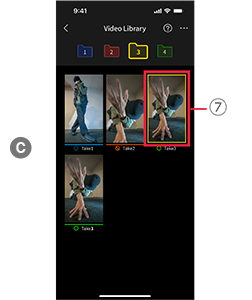
Change clips shown in multiview
- Tap
 (b-6) to switch to the video library c, which is a list of clip thumbnails.
The thumbnail of the clip currently shown in the multiview is outlined in yellow 7. - Tapping a thumbnail switches to the playback screen d.
- Tap [OK] in the upper right to add the clip to the multiview.
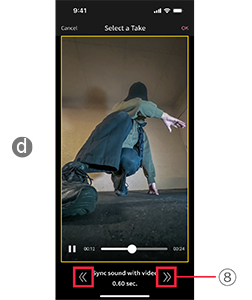
8Sync video with sound
To match video playback with audio playback if they are out of sync, use the left and right arrows at the bottom of the playback screen d.
9Export
Saves edited clips to your smartphone photo library.
The audio track fades out at the end of the video.
