

Record
Switch screens
Swipe left or right as needed to switch between the a storyboard review screen, b recording screen, and c clip list.
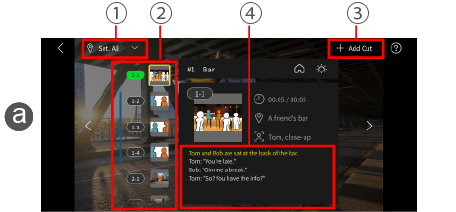
aStoryboard review screen
1 Select location
By selecting a location, you can restrict display to the shots to record at that location.
2Recording reminder
By checking the color of takes, which changes after you rate them as OK or KEEP, you can know at a glance whether the takes you need have been recorded yet.
3Add shots
You can add blank shots either as subshots of the selected shot or at the end of the storyboard.
This is useful if you might want to shoot from unscheduled angles on location.
4Edit main text
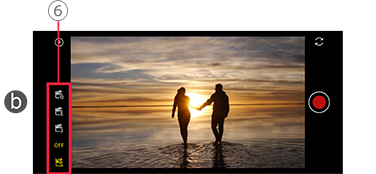
bRecording screen
For recording with your smartphone camera.
<Recording tips>
To enable more natural acting and allow greater flexibility in editing, we recommend recording entire scenes.
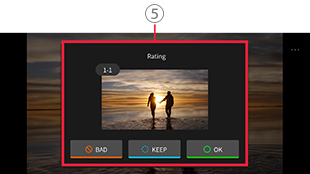
5OK, KEEP, or BAD
You can rate each take OK, KEEP, or BAD.
6Clapperboard timer
This timer counts down until the start of a performance or interview.
To start recording, you will need to tap the recording button, which differs from self-timer operation.
When the clip is edited, the portion until the counter reaches 0 is automatically trimmed.
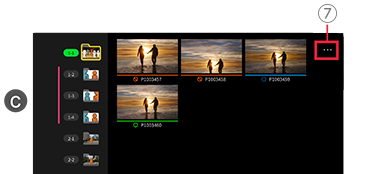
cClip list
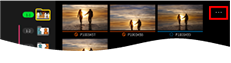
Lists clips recorded for each shot.
To play a clip d, tap a thumbnail.
7Move to folder
You can move takes that were recorded out of order to the correct shot folder.
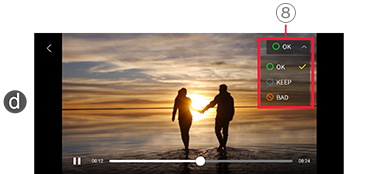
dClip playback screen
8Change OK, KEEP, or BAD ratings
*[Edit] is available when there is at least one video.