

Record
Switch screens
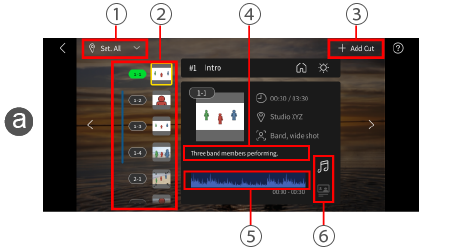
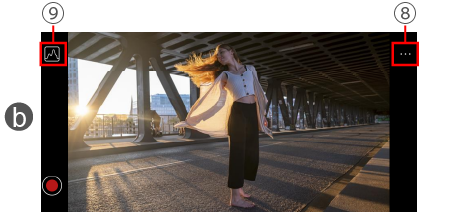
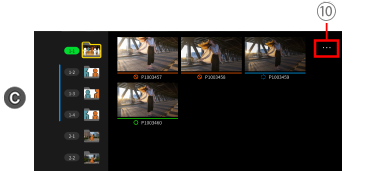
Swipe left or right as needed to switch between the a storyboard review screen, b recording screen, and c clip list.
This enables you to do a series of related operations all with your smartphone on location.
aStoryboard review screen
1 Select location
By selecting a location, you can restrict display to the shots to record at that location.
2Recording reminder
By checking the color of takes, which changes after you rate them as OK or KEEP, you can know at a glance whether the takes you need have been recorded yet.
3Add shots
You can add blank shots either as subshots of the selected shot or at the end of the storyboard.
This is useful if you might want to shoot from unscheduled angles on location.
4Edit main text
5Check B-roll/lip scenes
You can check whether the selected shot is B-roll or a lip scene.
6Check the selected music range
You can check the range of the music that is configured for the shot.
bRecording screen
You can use a smartphone as an external monitor for the camera.
For more details on how to connect the camera to a smartphone see the following link.
Connect the Camera to a Smartphone
You can record while playing music on this smartphone.
Video and audio can be synchronized without performing lip syncing work during editing.
7OK, KEEP, or BAD
You can rate each take OK, KEEP, or BAD.

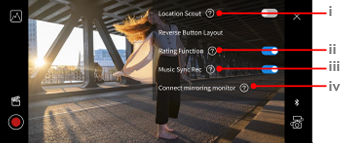
8Record menu
i Location Scout
When the Location Scout function is turned on, the smartphone camera launches when the LUMIX and the smartphone are not connected.
This is useful for test recording when scouting locations.
ii Rating Function
The rating function (OK/KEEP/NG) can be turned on and off.
iii Monitor Display Style
Allows you to switch between displaying the live view without the information overlay, or displaying it full screen.
iv Music Sync Rec
You can record while playing music.
Import the video and music to the timeline in a synchronized state during editing.
v Mirroring
Add a receiving device for mirroring and exit mirroring.
For more details on how to connect two smartphones, see the following link.
Connect a Mirroring Monitor
9Recording assisting functions
You can display useful functions for recording, such as Focus Peaking and LUT View Assist.
cClip list
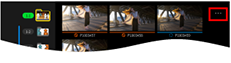
Lists clips recorded for each shot.
To play a clip d, tap a thumbnail.
10Move to folder
You can move takes that were recorded out of order to the correct shot folder.
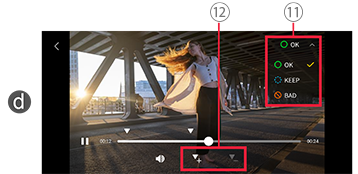
dClip playback screen
11Change OK, KEEP, or BAD ratings
12Mark
Setting markers is especially useful for long clips.
Markers also appear on the timelines in video editing software.
*[Export] is available after there is least one clip rated OK or KEEP.