

Edit
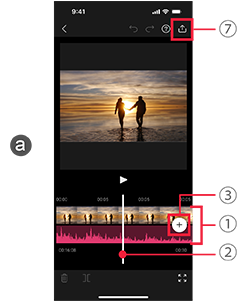
aPreview screen
1Timeline
OK takes for each shot are initially arranged in storyboard order.
2Playhead
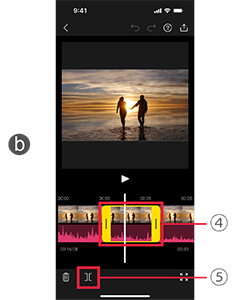
bEditing screen
4Trim clip
Tap a clip on the timeline to select it.
To change the portion to use, drag the tabs at either end of the frame left or right.
5Delete/divide clip
To delete a clip, tap  while it is selected.
To divide a clip at the position of the playhead, tap  .
.
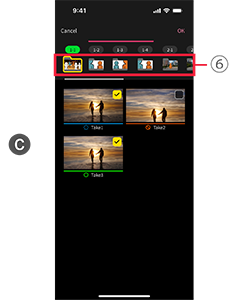
3Insert clip
- Tap
 (a-3) and select [Video saved in this app] to switch to the clip selection screen c.
 - Select a folder 6 to list the clips in it.
- Select clips to insert and tap [OK] to insert them next to the clip that the playhead is over.
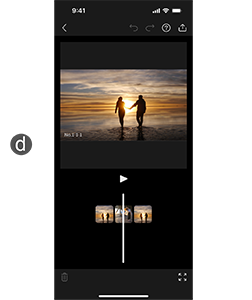
Rearrange shots
Touch and hold the timeline (a-1) to switch to the screen for rearranging shots (d).
To rearrange clips, drag the thumbnail of the clip to rearrange.
7Export
Saves edited clips to your smartphone photo library.
