

Record
Switch screens
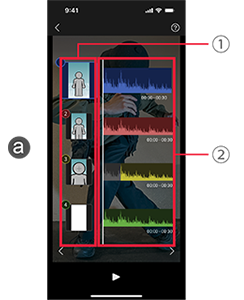
Swipe left or right as needed to switch between the a recording angle review screen, b recording screen, and c clip list.
aRecording angle review screen
Up to four angles can be set.
1 Select/change angle
Select an angle to record.
To change the angle or add a handwritten note, tap the selected image again.
2Set recording range relative to audio
To set a recording range relative to the audio track, tap again while an item is selected.
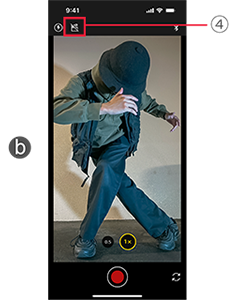
bRecording screen
For recording with your smartphone camera.
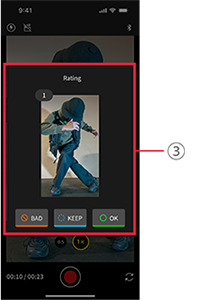
3OK, KEEP, or BAD
You can rate each take OK, KEEP, or BAD.
4Clapperboard timer
This timer counts down until the start of a performance.
Music starts playing a few seconds before the specified time elapses.
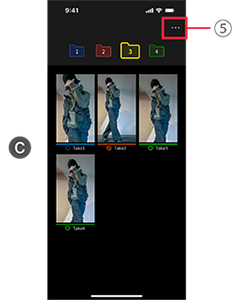
cClip list
Lists clips recorded for each shot.
To play a clip d, tap a thumbnail.
5Move to folder
You can move takes that were recorded out of order to the correct shot folder.
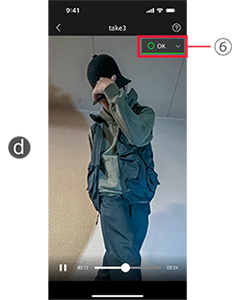
dClip playback screen
6Change OK, KEEP, or BAD ratings
*[Edit] is available when there is at least one video.