

Export
Importing an XML file created with LUMIX Flow into video editing software will automatically sort recorded clips into folders by shot and by OK, KEEP, or BAD takes.
A timeline is also created with recorded clips of selected ratings for each shot arranged in storyboard order.
- In LUMIX Flow, create an XML file.
(Two types of XML/FCPXML) - Save the XML file and all recorded data to the same folder on PC
- Import the XML file into the video editing software.
(Select from two available types of XML according to the editing software you are using.)
*DaVinci Resolve requires the same XML file to be read twice in order to automatically create folders and timelines. When loading the XML file in DaVinci Resolve, please specify the folder where the shoot data is stored.
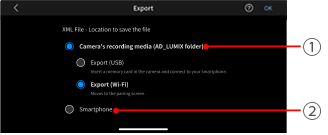
1Export Destination
Select the destination and connection method for exporting the XML/FCPXML file.
- Camera's Recording Media(USB)*
- Camera's Recording Media(Wi-Fi)*
- Smartphone
*When saving to the camera's recording media, the file is exported to the AD_LUMIX folder.
2Data to Place on the Timeline
You can select the take ratings to include on the video editing software's timeline
- OK Takes
- OK+KEEP Takes
- OK+KEEP+BAD Takes
For details on how to import an XML file into editing software, see the following link.
Import an XML File into Editing Software