

 Digital AV Support > Blu-ray Disc™ Player/Recorder > Download > DMR-PWT500GZ Firmware Download (New Zealand)
DMR-PWT500GZ Firmware Download (New Zealand)
Update Information
| Model Number | DMR-PWT500GZ |
|---|---|
| Update Version | Ver 1.34 |
| Update File Name / Size |
|
| Update Date | 2/Aug/2012 |
| Network Download | From 2/Aug/2012 |
Improvement
| Date/Version | Description |
|---|---|
| 2/Aug/2012 Ver 1.34 |
|
| 16/Apr/2012 Ver 1.33 |
|
| 24/Oct/2011 Ver 1.20 |
|
| 23/May/2011 Ver 1.13 |
|
Update Procedures (Overview)
- Perform steps 1 through 6 listed below.
- Step 1 Check the firmware version currently installed in your Blu-ray Disc™ Player/HDD Recorder.
- Step 2 Check the latest firmware version available for your Blu-ray Disc™ Player/HDD Recorder.
- Step 3 Download the latest firmware.
- Step 4 Decompress the downloaded file.
- Step 5 Create a firmware update disc.
- Step 6 Install the firmware.
Follow the steps below to check the firmware version currently installed in your Panasonic Blu-ray Disc™ Player/HDD Recorder.
- Steps
- Turn on the main unit.
- Press the [FUNCTION MENU] button on the remote control to open the display menu screen.
- Using the Up and Down cursor buttons on the remote control, select the "Others" tab.
- Using the Up and Down cursor buttons, select the "Setup" tab.
- Using the Up and Down cursor buttons, select the "Others" tab.
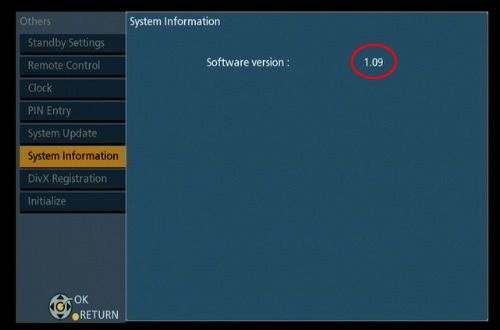
- Select the "System Information" tab. The current firmware version for your recorder will be displayed at the top of the screen (e.g. "1.09").
Please make note of this version number.
Confirm the latest firmware version that is available for "the Model Number of your Blu-ray Disc™ Player/HDD Recorder" by referencing the "Update Information" section provided above (near the top of this page).
Please compare this firmware version number to the version number of the firmware currently installed in your Panasonic Blu-ray Disc™ Player/HDD Recorder (the firmware currently installed in your Panasonic Blu-ray Disc™ Player/HDD Recorder was checked in "Step 1").
- If the version of the firmware installed on your Panasonic Blu-ray Disc™ Player/HDD Recorder and the latest firmware version available are the same
>> No update is necessary. - If the version of the firmware installed on your Panasonic Blu-ray Disc™ Player/HDD Recorder is lower than the latest version available
>> Update is recommended - Please continue to step 3
- NOTE:
- The firmware for your Panasonic Blu-ray Disc™ Player/HDD Recorder may not need to be updated even though a firmware update has been released - for example.
- If your Panasonic Blu-ray Disc™ Player/HDD Recorder was manufactured after the firmware was released and the firmware update has already been installed.
- If your Panasonic Blu-ray Disc™ Player/HDD Recorder was serviced by an authorized Panasonic service technician the recorder was updated with the latest firmware.
If the version of the firmware installed in your recorder is lower than the latest version of the firmware available , please download the latest version of the firmware.
Use of software downloaded from this site requires following License Agreement. Please review the contents of the License Agreement beforehand.
Please click the button when agreeing to the agreement.